



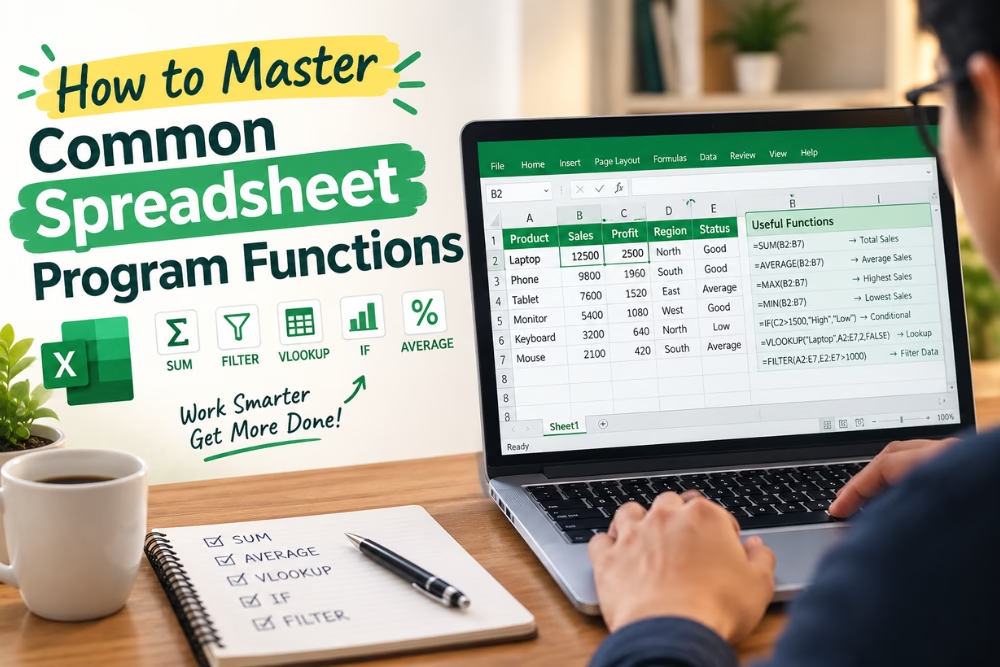
Mastering spreadsheet programs is a skill that can significantly boost your productivity and efficiency in managing data across various contexts, from simple budgeting tasks to complex data analysis. In today’s data-driven world, understanding common Excel formulas and functions is essential for performing calculations and managing data efficiently.
This article provides a comprehensive guide to improving your spreadsheet efficiency with tips and techniques on handling data effectively. Let’s explore steps to mastering both basic and advanced functions to transform you into a proficient spreadsheet user.
Introduction to Mastering Spreadsheet Programs
Spreadsheet programs like Microsoft Excel, Google Sheets, and others are indispensable tools in the modern workplace. These programs allow you to manage, analyze, and visualize data in an efficient and organized manner. Understanding the basics of these programs is the first step toward becoming proficient in their use. With foundational knowledge, you can leverage more complex functionalities to streamline workflows, perform data analyses, and generate meaningful reports.
Learning to master spreadsheet programs also involves cultivating habits that help you prevent errors, save time, and enhance data accuracy. Whether you work with data occasionally or on a daily basis, spreadsheet efficiency tips are invaluable resources for ensuring that your outputs are both reliable and professional.
Spreadsheet Basics
Before diving into advanced functionalities, it is crucial to understand the fundamental elements of spreadsheets. Spreadsheets are made up of a grid comprising rows and columns where data is entered and organized. Each cell in the grid can hold text, numbers, or formulas that automatically calculate and update based on your inputs.
Key components and operations to get familiar with include:
- Rows and Columns: The basic elements of a spreadsheet that organize data horizontally and vertically.
- Cells and Ranges: Individual data point areas and selection of multiple cells, respectively, where you input or reference data.
- Worksheets and Workbooks: A worksheet is a single sheet within a workbook, which can contain multiple worksheets.
- Basic Formulas: Simple calculations using arithmetic operators for operations like addition, subtraction, multiplication, and division.
With these basics, you can start building spreadsheets that are not only organized but also prepared for more advanced functionalities.
Developing Efficient Data Entry Practices
Efficient data entry is a cornerstone of effective spreadsheet management. It minimizes errors and saves time, enabling you to focus on more complex tasks such as data analysis. To enhance your data entry practices, start by familiarizing yourself with autofill features, data validation techniques, and consistent formatting rules.
Here are some strategies to optimize data entry:
- Use Autofill: Leverage the autofill handle to quickly populate cells with repetitive data or sequences, such as weekdays or months.
- Implement Data Validation: Set rules for data input in cells to prevent incorrect or invalid entries and ensure data consistency.
- Maintain Consistency: Use consistent data formatting for dates, numbers, and text to improve readability and facilitate analysis.
By adopting these practices, data integrity and the reliability of your spreadsheets are significantly enhanced.
Mastering Basic and Advanced Functions
Excel function mastery involves both understanding basic functions and exploring advanced ones to unlock the true potential of spreadsheets. Common functions such as SUM(), AVERAGE(), and COUNT() can simplify calculations and help analyse data efficiently.
Consider these examples:
- Basic Functions: Use SUM() to add up a series of numbers, AVERAGE() to find their mean, and COUNT() to count the number of cells with numeric entries.
- Advanced Functions: Other functions, such as IF() and lookup functions, can be used for conditional calculations and finding specific information.
- Logical Functions: Stay logical with IF() or nested IF() statements to create conditional calculations and output.
Mastering these functions allows for effective data analysis and automation of tasks, saving you valuable time and effort.
Using Functions for Data Analysis
Functions are essential for transforming raw data into insightful information. By employing the right functions, you can perform complex data analyses in minutes. These analytical capabilities are crucial for reporting and making data-driven decisions.
Some essential functions and tools in data analysis include:
- PIVOT TABLES: Use PivotTables to summarize and explore data from different perspectives.
- STATISTICAL FUNCTIONS: Use statistical functions like MEDIAN(), STDEV.P(), and RANK() for deeper insights into data trends and variances.
- CHARTS AND GRAPHS: Use charts to visualize patterns and make data easier to understand.
These tools can make data easier to interpret and help communicate key findings.
Shortcuts and Automation
Shortcuts and automation options significantly expedite your interaction with spreadsheet programs, enhancing productivity and reducing manual, repetitive tasks. By mastering a few key shortcuts and the automation capabilities, you streamline your workflow efficiently.
Popular shortcuts might include:
- Navigation Shortcuts: Use Ctrl + Arrow Keys to quickly navigate to the edges of your data set.
- Selection Shortcuts: Ctrl + Shift + Arrow Keys lets you quickly select large data ranges.
- Copy and Paste: Use Ctrl + C to copy and Ctrl + V to paste content.
For automation, consider utilizing features like Macros in Excel, which allow you to record actions and play them back as many times as needed, simplifying routine tasks.
Common Spreadsheet Errors and Fixes
Even with the best practices in place, errors are a common occurrence in spreadsheets. Identifying and fixing these errors is crucial to maintaining the accuracy and integrity of your data.
Some typical errors are:
- #NUM! Errors: Occur when a formula produces an invalid numeric result or an unsupported calculation.
- #NAME? Errors: Often caused by misspelled function names or unrecognized text in a formula.
- #REF! Errors: Occur when a formula refers to a cell that is no longer valid, often because referenced cells were deleted.
Being proactive and regularly auditing your spreadsheets for these common errors can prevent disruptions in your workflow and improve the overall quality and reliability of your data outputs.
Conclusion
Mastering spreadsheet functions is not an overnight task, but with consistent practice and awareness of the available tools, you can significantly increase your proficiency and efficiency. By understanding the basics, harnessing the power of both basic and advanced functions, and implementing effective data entry practices, you lay a strong foundation for more complex data manipulations. Furthermore, utilizing shortcuts and automation techniques will save you time and effort, allowing you to focus more on insightful analyses. Lastly, staying vigilant about common errors will ensure the integrity of your data. Begin with these tips and soon you’ll find yourself executing tasks with ease and precision, realizing the full potential of your spreadsheet software.
Frequently Asked Questions (FAQs)
1. What are the most important spreadsheet functions to learn?
Start with common functions such as SUM(), AVERAGE(), COUNT(), and IF(). These cover basic calculations, data counting, and conditional logic.
2. How can spreadsheet functions improve productivity?
Functions automate calculations and reduce repetitive manual work, helping you process data faster and minimize calculation errors.
3. What is the difference between a formula and a function in Excel?
A formula is an expression used to perform a calculation, while a function is a predefined formula designed for a specific task, such as SUM() or AVERAGE().
4. How can I fix common Excel errors?
Check the formula, cell references, and function names. Common errors such as #NUM!, #NAME?, and #REF! usually indicate problems with calculations, references, or formula syntax.
5. What spreadsheet features can help save time?
Features such as autofill, keyboard shortcuts, data validation, PivotTables, and macros can reduce repetitive tasks and make spreadsheet workflows more efficient.
